This guide walks through the complete workflow: managing multiple connection tabs, setting up SSH access, choosing a workspace, selecting current Codex models from the remote CLI, and using the remote Codex console with text or voice input, queued prompts, and detached jobs.
RemoteVibeCode assumes your remote Codex environment already works from the command line before you try to use the iPhone or iPad app.
Review the prerequisites guide first if you still need to prepare SSH access, install Codex CLI, log in with ChatGPT or OpenAI, or validate that Codex works on your remote system.
Quick Start
Confirm the remote host is reachable over SSH and already has Codex CLI installed.
Open Settings if you need to import an SSH key or review saved sessions.
Open Connect, add or select a saved session, and connect.
Open Workspace, choose the project directory, then start or resume a session.
Open Remote to send prompts, answer follow-up questions, or queue the next prompt while Codex is still running.
If any of those first-run prerequisites are missing, start with the prerequisites page first.
RemoteVibeCode 2.0.0 is the feature-complete release for the current mobile SSH/Codex workflow, with multi-connection tabs, remote session controls, queued prompts, and detached job observability in place.
The Codex model list now refreshes from the connected remote host every time you connect or reconnect.
Codex setup checks now report installed/latest versions and can offer package-manager updates for Homebrew cask, npm, and Windows winget installs.
The model picker uses visible models reported by codex debug models, while still allowing a custom model value.
Reconnect helpers for the current connection tab, including reopening the previous session after reconnect.
Top-tab status icons for active Codex work and unread results.
Inline question and approval cards in the Remote screen.
Queued next-prompt support with cancel before execution starts.
Session export/share from the Remote session actions menu.
Detached job status is more explicit, with clearer state transitions and diagnostics.
Workflow Overview
Use the top connection tab strip to keep one or more remote hosts open side by side.
Configure authentication in Settings (SSH key and/or saved session).
Use Connect to connect the selected tab to a remote host.
Open Workspace to choose the remote project directory.
Resume a previous session or start a new one.
Use the Remote tab for text chat or voice-to-text prompts, queued follow-up prompts, and detached job management.
Connection Tabs
Tap the + button in the top tab strip to add another remote connection.
Each connection tab keeps its own connection state, selected workspace, and active session.
Switching tabs preserves the selected workspace and session context for that tab while the app stays open.
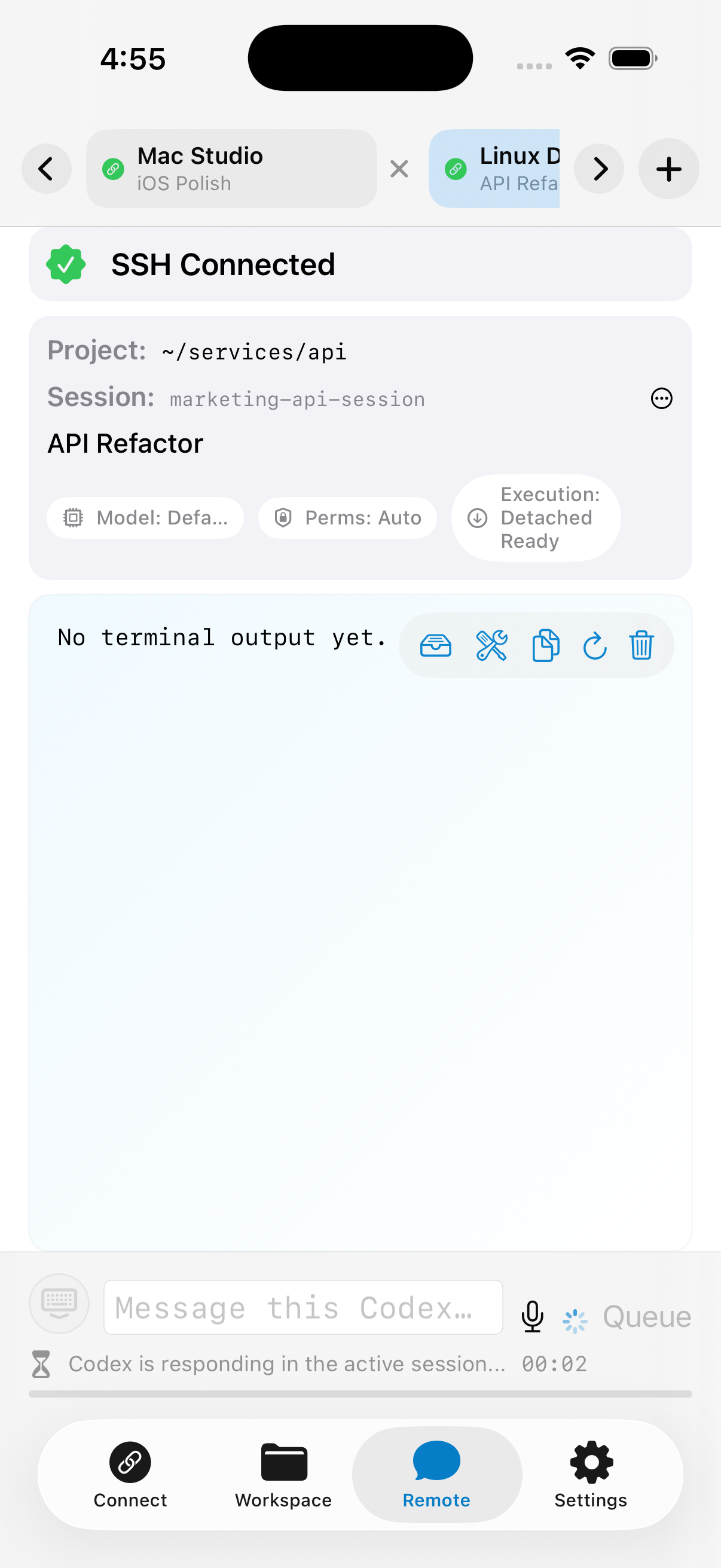
Use the left/right tab controls when several connections are open, and close a tab with the x button.
The top tabs show an hourglass while Codex is actively working and a checkmark when that tab has new results you have not opened yet.
This makes it practical to keep multiple servers or environments open without disconnecting and reconnecting between them.
Top connection tabs show active hosts, session names, scroll arrows, and working/unread state.
1) Connect to a host
Pick the connection tab you want to use, then open Connect.
Select an existing saved session or tap + to add one.
Fill in Session Name, Host, Port, Username, and auth method.
Tap Connect.
Use Resume Previous Session when you want the app to reconnect and jump back into the last active remote console for that host.
If a connection drops after the app goes into the background, use Reconnect This Tab or Reconnect and Reopen Session to recover the previous context quickly.
If password/passphrase is not saved, the app prompts at connect time.
Security recommendation: connect to your infrastructure through a VPN and keep SSH access private instead of exposing SSH directly to the public internet.
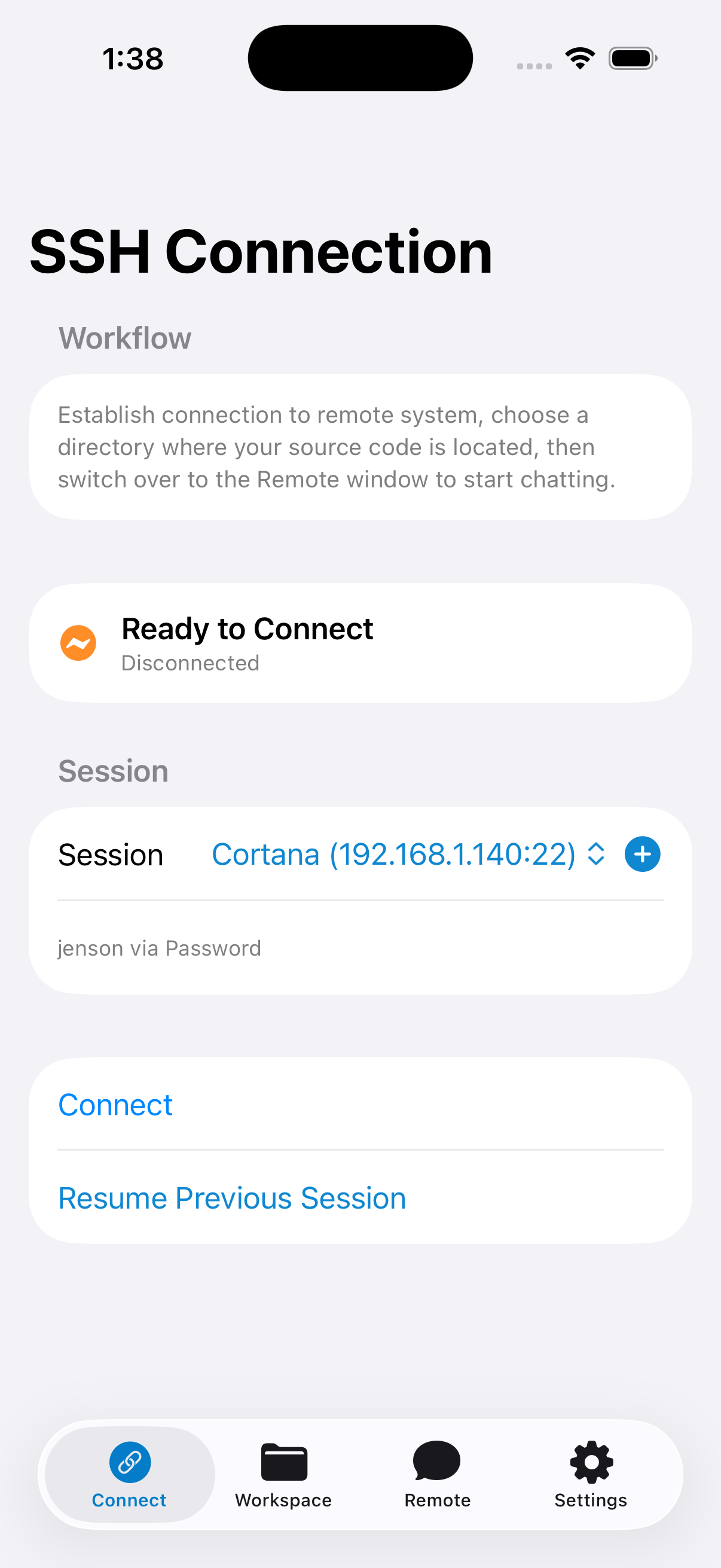
Connect screen with the connection tab strip, saved session picker, and connection actions.After connecting, switch to Remote to continue the Codex session.
2) Browse to your workspace directory
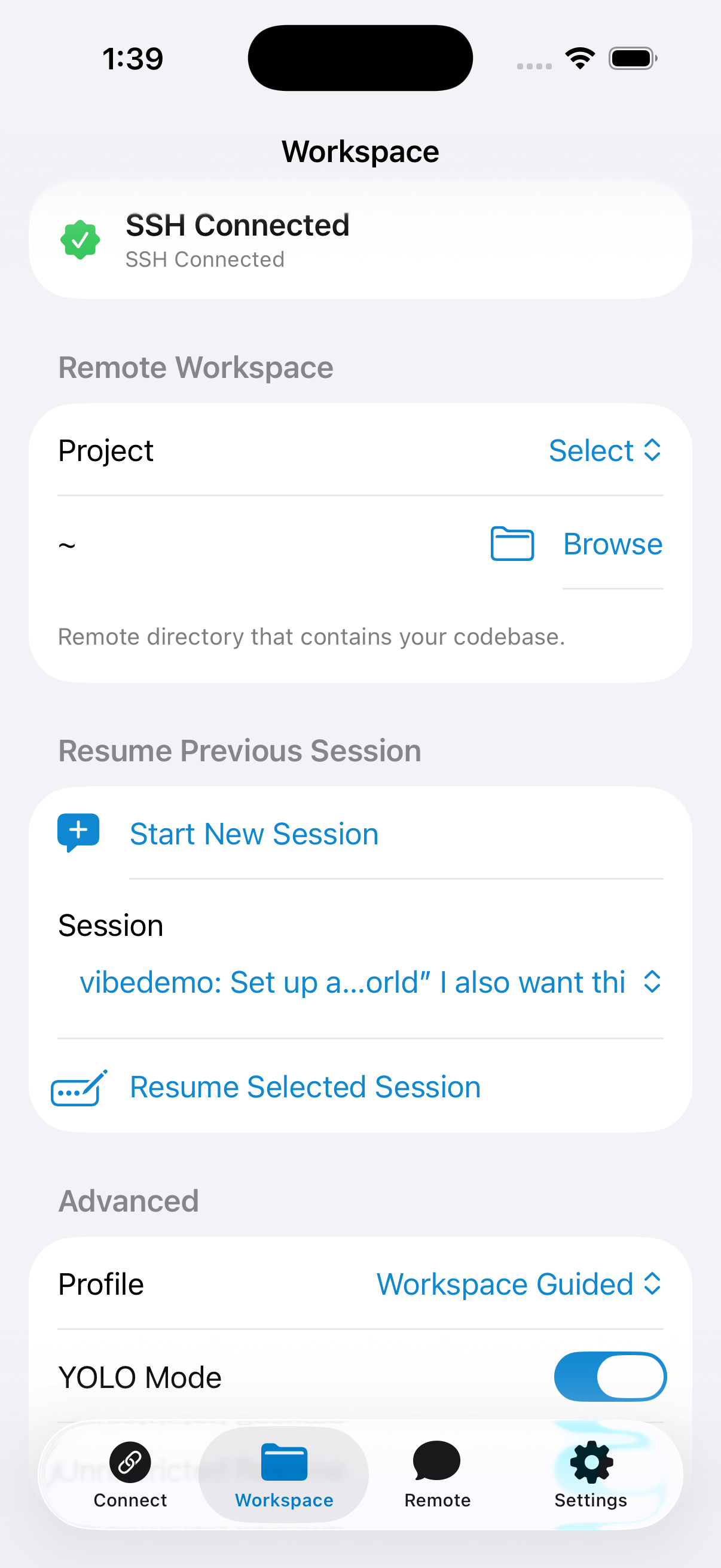
Open the Workspace tab.
Use Browse to navigate folders on the remote host.
Select the project directory that contains your codebase.
Resume a previous session or start a new session from this workspace.
Session discovery is scoped to the selected workspace path. The app shows a searching state while it is scanning, caches discovered sessions for the current tab/workspace while the app remains open, and lets you forget a saved project, rename a selected session, or create folders from the remote browser.
Workspace tab with remote project and session selection.
Profiles and Models
Execution profiles
Safe Read-Only: Runs Codex in read-only mode with strict approvals.
Workspace Guided: Workspace-write mode with on-request approvals.
Workspace Auto: Runs with YOLO-style automatic approvals for fastest execution.
Unrestricted (Dangerous): Uses dangerous bypass flags. Use only on trusted systems.
The app remembers each session's selected profile and restores it when that session is resumed.
Model selection
The app refreshes the model list from the connected remote host after each successful connect or reconnect.
RemoteVibeCode reads the visible model catalog from codex debug models, so newly released Codex models can appear without an app update once the remote CLI knows about them.
If model discovery fails, the app keeps a built-in fallback list so you can still start or resume sessions.
Use Custom Model if you know a model id that is not yet listed.
Model choice is available when starting a new session and from the active session header in the Remote screen. The app remembers the selected model for each session.
3) Use the Remote window
Session header and execution status
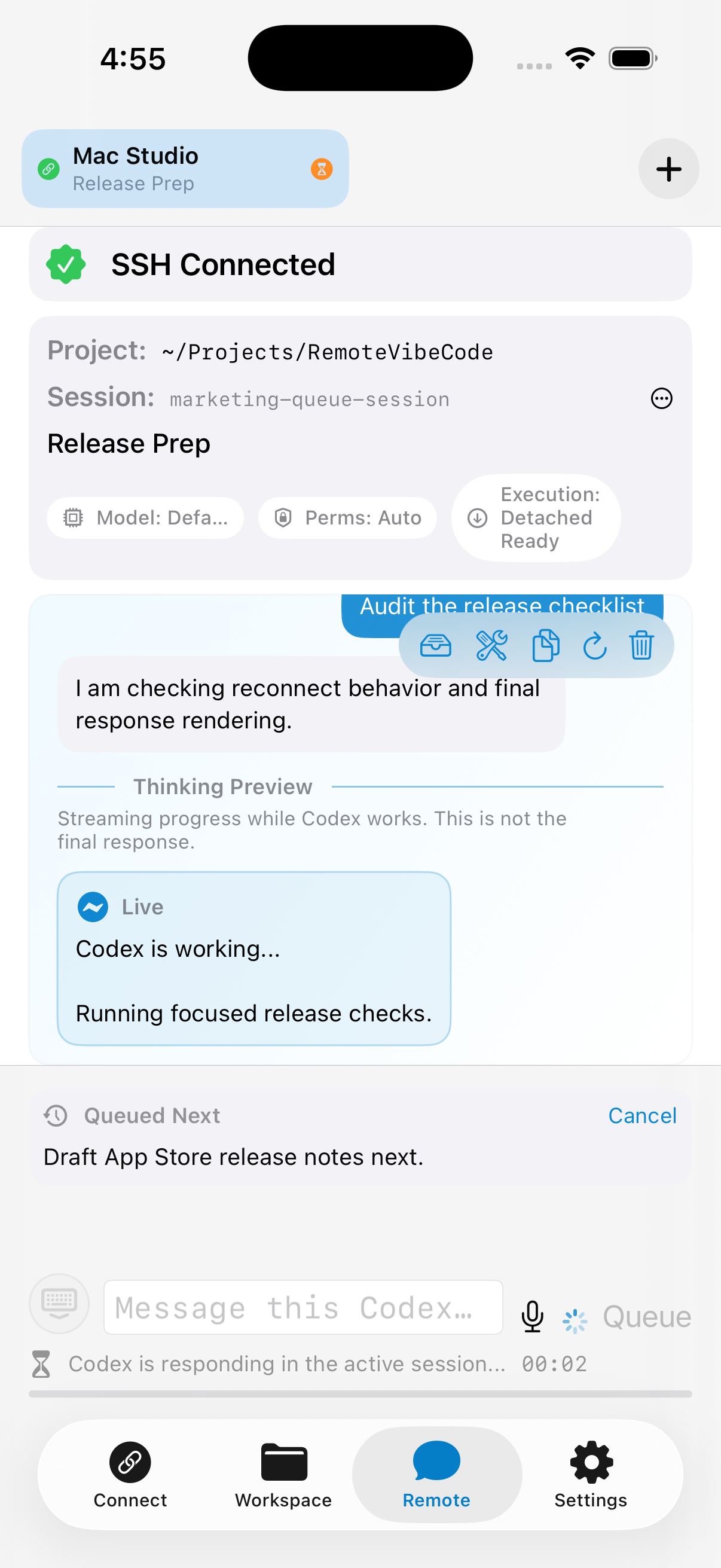
The session header shows the active session name and an execution badge such as Detached Ready, Detached, or Foreground Only.
The model badge opens a picker populated from the latest model catalog discovered on the connected remote host.
Open the session actions menu to rename a session, share/export the current session transcript, or open the detached jobs dashboard.
Renaming a session updates both the app-side label and the remote Codex session when the server is connected.
Text console
Type prompts into the input field and send to the active session.
Review user/assistant messages and command output in one stream.
Use Reload/Copy/Clear/Troubleshoot controls as needed.
Answer Codex Needs Input prompts directly from the Remote screen when a session pauses for approval or clarification.
Use the inline Approval Required card when Codex needs an explicit yes/no style confirmation before continuing.
If guided mode is blocked, you can retry once with Workspace Auto from the in-app prompt.
When a session is already busy, the send button changes to Queue so you can line up the next prompt instead of interrupting the current run.
The Queued Next panel shows the pending prompt and lets you cancel it before it runs.
The Updating Files panel shows files Codex is actively touching during a live run.
Detached jobs
Use Detached Jobs from the Remote toolbar or session actions menu to inspect background runs on the current host.
From the detached jobs sheet you can refresh the list, open a session tied to a job, cancel a running job, or delete a finished one.
Detached jobs now surface more detailed states such as Starting, Waiting for Output, Running, Finished, or Failed.
If detached execution is unavailable or fails to start, the session falls back to foreground execution and the reason is shown in the execution detail line.
Voice-to-text
Tap the microphone button in the Remote tab.
Dictate your prompt and stop recording.
Edit transcribed text if needed, then send.
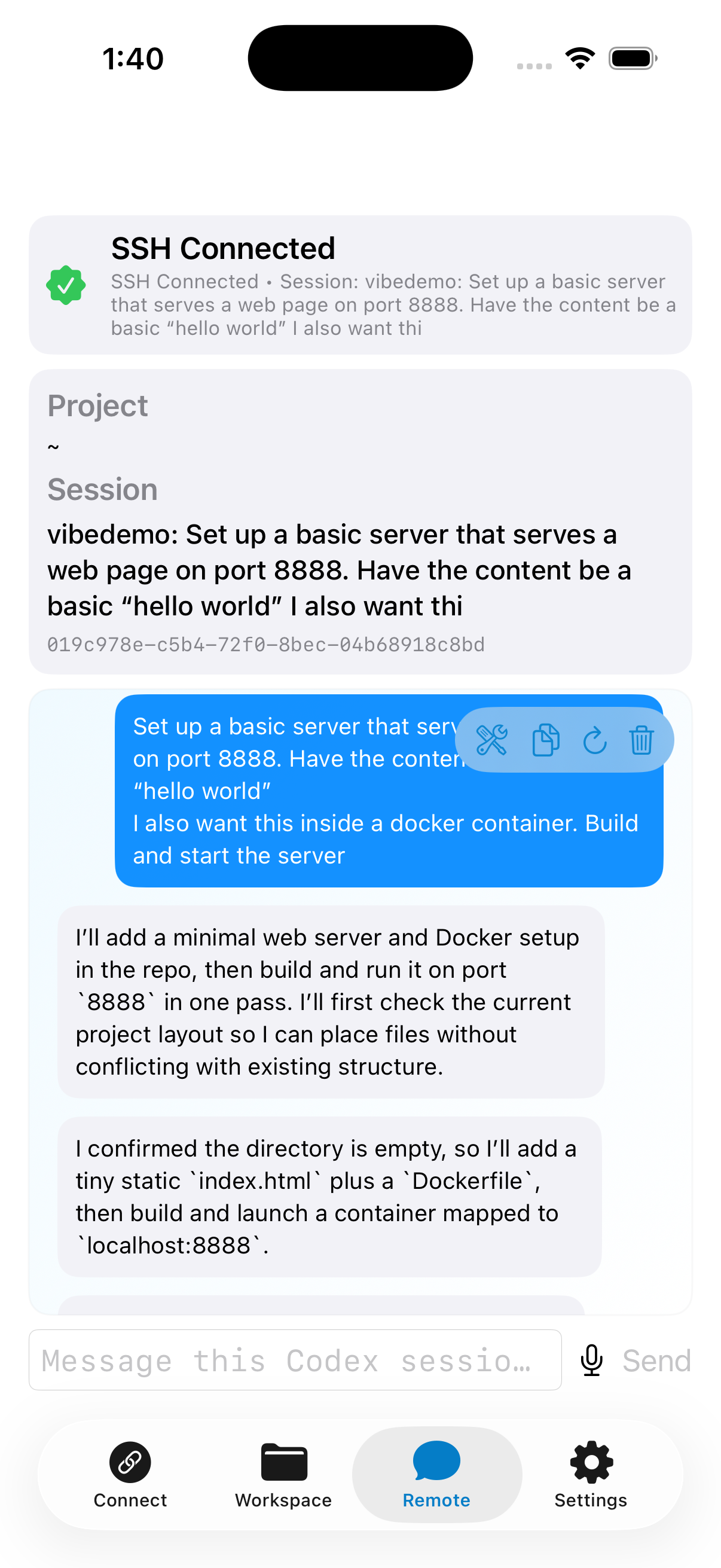
Remote chat view with Codex responses and prompt controls.Queued prompts stay visible until they start or are cancelled.
Troubleshooting
If Codex is not found, install it on the remote host with Homebrew, npm, or winget, then run codex login from a normal terminal on that host.
If the app offers a Codex update, it can try Homebrew cask, npm, or Windows winget update commands. If the remote host requires interactive approval or administrator rights, run the displayed command manually.
Use the Remote Troubleshoot panel to inspect SSH, session, transcript, and debug events, or run diagnostics from the sheet.
Verify SSH key validity and passphrase status in Settings → Manage SSH Keys.
If detached background execution is not behaving well on a remote host, enable Foreground Only Mode in Settings.
If a newly released model is missing, reconnect the host after updating Codex CLI on the remote system. The app refreshes the model catalog on connect.
If the app shows Codex as still working after switching away and back, reconnect the tab. The app now re-checks SSH health on resume and clears stale foreground work state when the connection was lost.
Settings Highlights
Manage saved sessions and SSH keys.
Enable Foreground Only Mode to skip the detached background runner.
Sync settings with iCloud where available.
Save settings to a file or load them back later.
Codex Remote Unlock is a one-time purchase with restore support for unlimited remote usage beyond the in-app trial limit.